How to Protect Your Email from Spam – Practical Strategies That Work
Nearly half of all email traffic worldwide is spam. That’s not just promotional clutter — it includes phishing attempts, malware-laden attachments, social engineering attacks, and scams designed to steal your identity or money. Even with advanced filtering, dangerous messages still reach your inbox every day.
The good news: a combination of smart habits and the right tools can reduce your spam exposure dramatically. This guide covers why spam persists in 2026, the real risks it carries, practical blocking techniques across major email providers, and how temporary email fits into a broader protection strategy.
Why Spam Still Works in 2026
Modern spam isn’t the crude mass-blasting of a decade ago. Today’s campaigns use AI-generated text, personalization, automatic translation, and sophisticated social engineering that makes messages look like legitimate business correspondence.
Several factors keep spam effective: urgency-based psychology (“your account will be closed in 24 hours”), automation that generates grammatically perfect messages at scale, sheer volume ensuring some recipients always click, and human fatigue from processing hundreds of emails daily. Even when technical filters improve, a single moment of inattention is enough for one dangerous message to slip through.
The Real Cost of Spam
Spam does more than clutter your inbox. For individuals, it can result in stolen passwords or banking details, unwanted subscriptions with hidden recurring payments, malware infections through fake invoices and attachments, and silent harvesting of personal information through phishing forms.
For businesses, one wrong click can lead to data breaches, lost customers, reputation damage, and expensive recovery processes. The risk isn’t theoretical — phishing remains one of the primary entry points for cyberattacks, and spam is the delivery mechanism.
How to Block Spam in Your Email Provider
Gmail
Gmail’s spam filter is active by default, routing unwanted emails to the Spam folder. To strengthen it: go to Settings, then Filters and Blocked Addresses to create custom rules. Block specific senders by opening their email, clicking the three-dot menu, and selecting Block. Create filters based on keywords, sender addresses, or domains to automatically delete or archive matching messages.
Outlook
Outlook routes spam to the Junk Email folder automatically. Adjust filtering strength in Settings under Junk email — choose between Standard and Strict filtering. Add trusted contacts to Safe senders and known spammers to Blocked senders and domains.
Yahoo Mail
Yahoo filters spam automatically but allows customization through Settings, then Security and Privacy. Block individual senders through the three-dot menu on any email. Create custom filters under Settings to route or delete messages matching specific criteria.
Beyond Filters: Additional Spam Prevention Methods
Email filters catch most spam, but no filter is perfect. These additional practices close the gaps:
Check sender addresses carefully. Phishing emails often use domains that look almost identical to legitimate ones — one letter off, or a different TLD. Train yourself to verify before clicking.
Never log into accounts through email links. Always navigate to the website directly through your browser rather than clicking links in emails claiming account issues.
Use unique addresses for different purposes. Separate your email identity by context — one address for personal communication, one for professional use, and disposable addresses for everything else.
Use sender authentication awareness. Protocols like SPF, DKIM, and DMARC help verify whether an email actually came from the claimed sender. Most modern email providers use these automatically, but understanding them helps you evaluate suspicious messages.
How Temporary Email Eliminates Spam at the Source
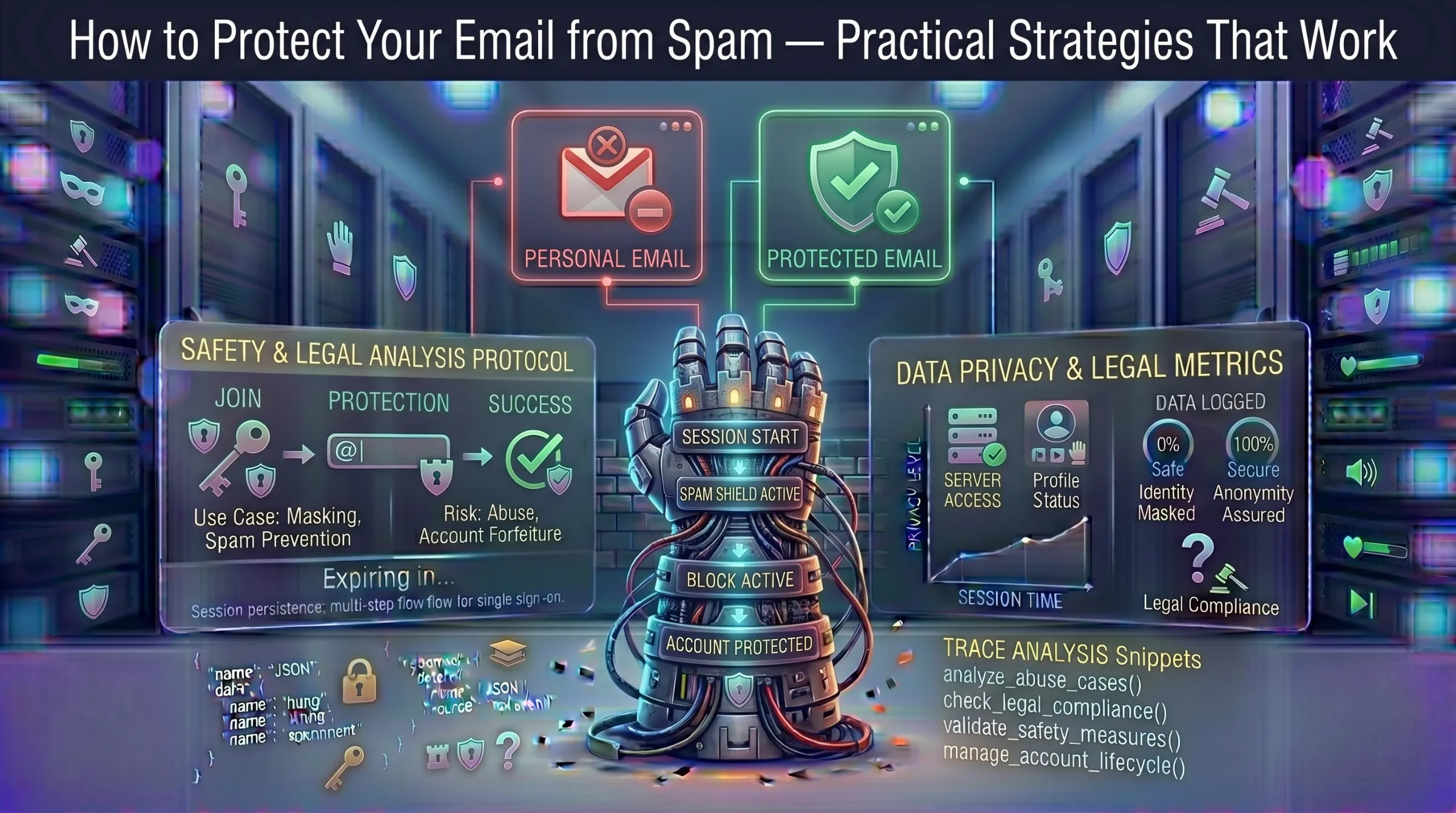
All the techniques above are reactive — they deal with spam after it reaches your inbox. Temporary email is preventive – it stops spam from reaching your real inbox in the first place.
The logic is simple: every time you hand your real email to a website, you risk it being added to marketing lists, sold to data brokers, or exposed in a breach. Each new signup is another potential spam source. A free disposable inbox absorbs that risk entirely.
Use a temp address for forum signups, free trial activations, download gates, newsletter subscriptions, loyalty card registrations, online giveaways, and any service you don’t fully trust. The spam goes to an inbox that auto-deletes – your real email never sees it.
For a deeper understanding of how disposable addresses protect against data exposure specifically, see our guide on how data breaches put your email at risk.
Best Practices for a Spam-Free Inbox
Use temp mail for every non-essential signup. This single habit eliminates the majority of future spam sources. Generate a disposable address for anything that doesn’t need your real identity.
Use a different temp address for each registration. If one address ends up on a spam list, it doesn’t affect any other service. One address per task keeps each interaction isolated.
Combine temp mail with strong email hygiene. Use two-factor authentication on your primary email, create strong unique passwords, and periodically audit which services have your real address — unsubscribe and delete accounts you no longer use.
Use a VPN when accessing temp mail. A VPN combined with temporary email covers both your email identity and your network identity – the strongest combination for spam and tracking prevention.
Don’t use temp mail for important accounts. Banking, medical, government, and employment communication should always use your real, secured email address. Temp mail is for everything else.For more on how long your disposable inbox stays active, see our guide on how long temporary email lasts.